
Log in to your Gmail account
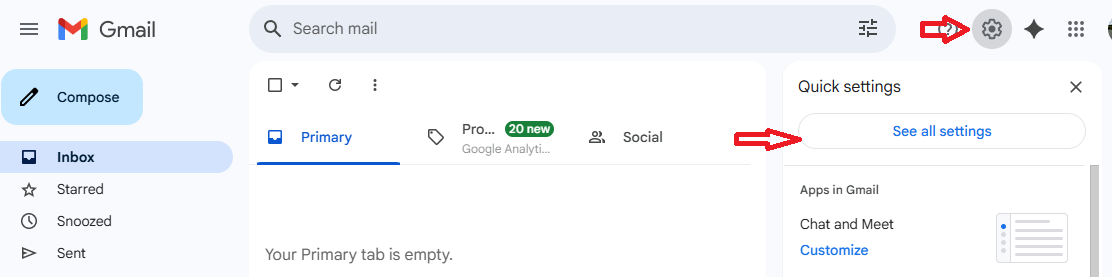
Click the little cog top right of the inbox screen and select "See all settings "
Receiving mail from your BYTE mailbox
- Click accounts and imports, then select the add mail account option.
- Enter the email address you wish to check
- Click next on pop3.
- Enter your login details as if you were attaching the email account to outlook using pop3.stackmail.com as the incoming server and your own username and password.
Your account is then added to your Gmail inbox and will check periodically and download mail from your BYTE Mailbox to your Gmail. if you wish to keep mail in your BYTE mailbox as well, just tick the option in the image above "leave a copy of retrieved message on the server".
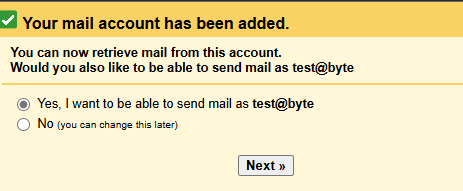
If you wish to send from GMail but as your domain, then on the next screen Select "Yes i want to send as"
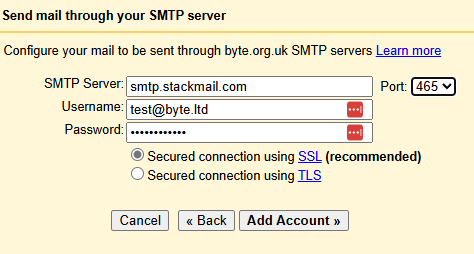
Fill in the same details on the next screen as your incoming, although with smtp.stackmail.com as the outgoing server. Make sure theat SSL is selected the and port is set to 465
If asked to "Treat as an alias", make sure this is unticked as this stops emails being sent from GMail
You can now receive your BYTE mail through Gmail and also send as your personal domain rather than a Gmail account.
