
We strongly recommend using Multi factor authentication (MFA) on as many accounts as you can to improve your security. Office 365 is enforcing MFA for all users, so you will likely encounter the task of adding MFA to your phone to secure your 365 account. Follow these steps to set this up.
- On your phone, download Microsoft Authenticator from the Apple App Store, or the Google Play Store
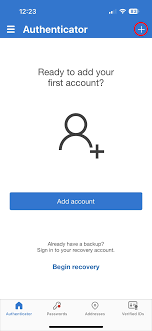
- Open authenticator then click the plus button top right of the screen
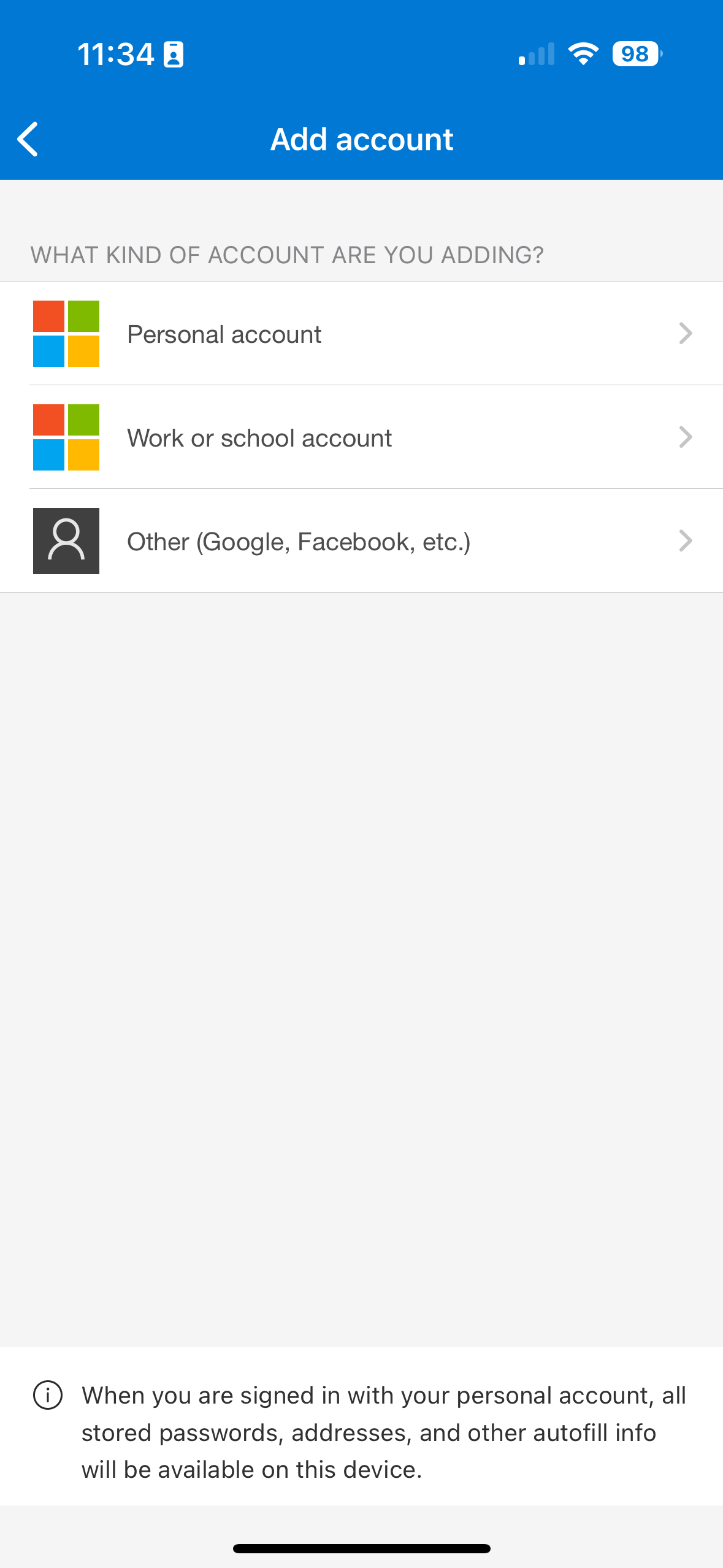
- Select "Work or School Account"
- Choose "Scan QR Code"
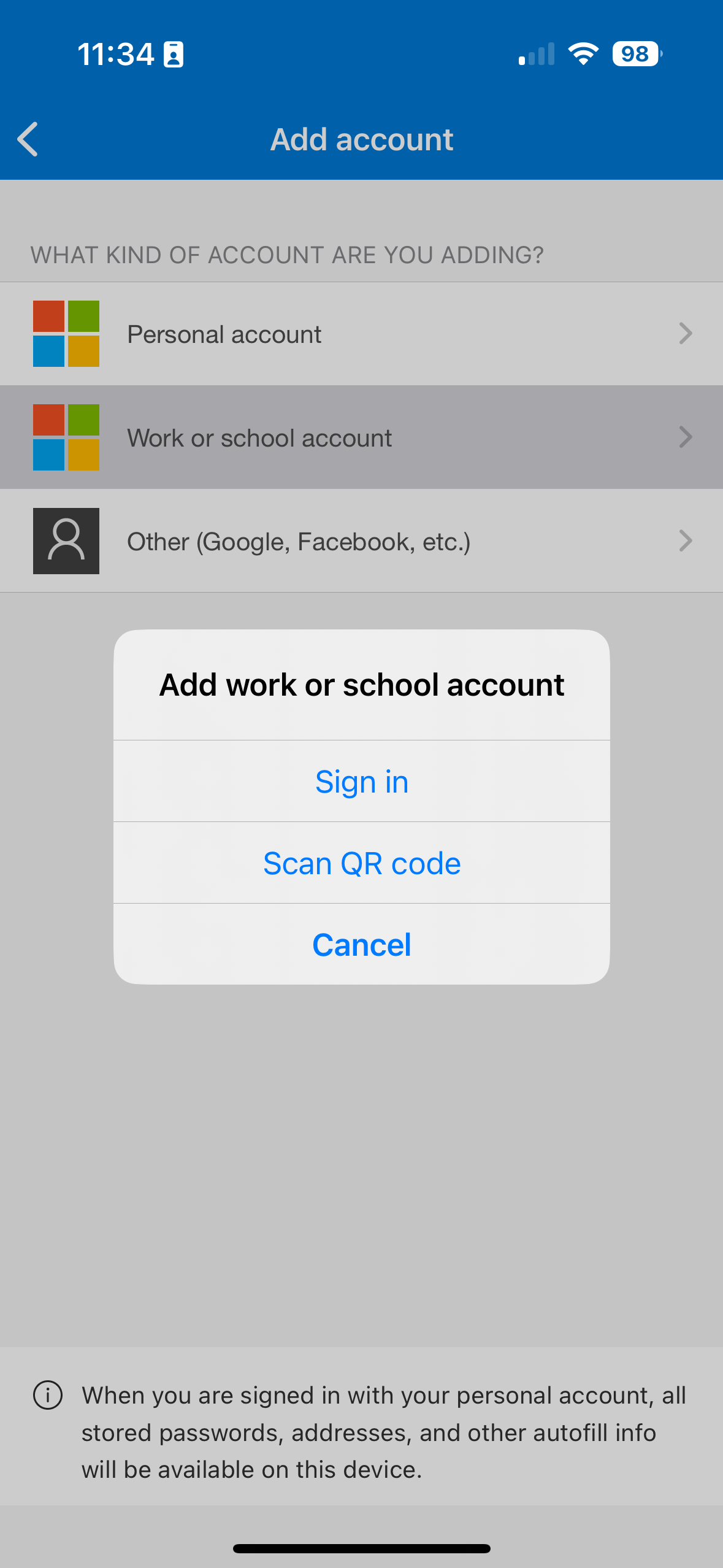
- This will open your camera ready to scan a QR Code
- In your computer browser go to your 365 portal https://portal.office.com
- Login with your office 365 credentials
- When it asks you to setup multi factor authentication, select next until it displays a QR code
- Scan the QR Code with your phone camera and it will add the account to the phone authenticator app.
- Click next on your computer and it will test the app by sending it a notification asking to enter a number. This number will be displayed on your computer screen.
- Enter the number on the phone app and click yes to complete the test.
- The webpage on your computer should then login to your account.
This process is usually only needed when logging into a new device or in a new location, but it may periodically need to verify your identity, as you are setup with the MFA already, if 365 asks you to verify again you will only need to enter the number displayed on the device you are logging in on, into the phone authenticator app.
If you are setting up your email on your phone in the outlook application it is advised to do the above process first before trying to login to the outlook application.
